
Please be aware that SHARETO accounts need to be activated and set up by the support team. They will handle both enabling device sharing and creating the SHARETO accounts for you.
Create Automated SHARETO Groups
Tip: If you want to create a group linked to a SHARETO account, it's important to note that this group functions differently from regular groups. Assets in a SHARETO account are automatically added or removed programmatically when you share or unshare them with the associated SHARETO account, meaning you cannot manually add assets to this group. When assets are shared with the corresponding SHARETO account, they will be automatically included in this group, and they will be removed when unshared. This feature is particularly useful for pulling reports, filtering data, or setting notifications on different SHARETO accounts, as you can utilize this group just like any other group in that respect. For more information on SHARETO accounts, please contact Geoforce.
1. Click "Setup"

2. Click "Groups"

3. Click "NEW GROUP"

4. Click the "Group Name" field and enter a name for this group.

5. Click the Checkbox to set this up as a SHARETO Group

6. Use this dropdown to select the account the group is connected to.
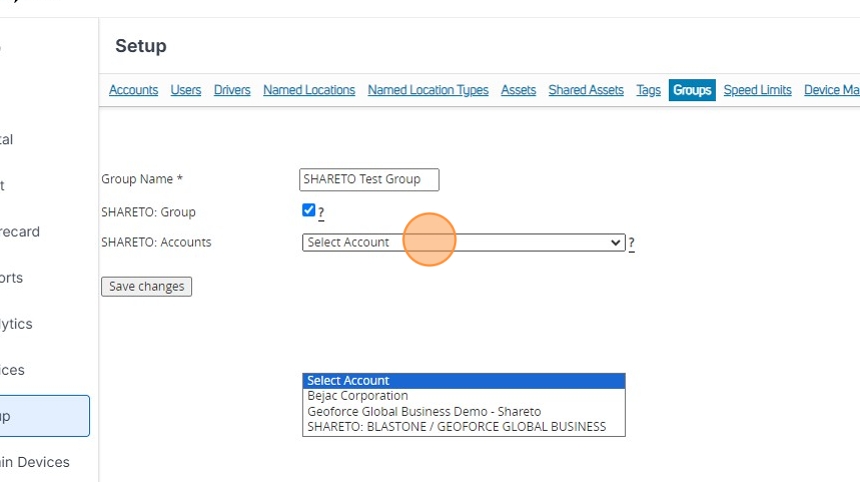
7. Make sure to click "SAVE CHANGES"

8. You will see a confirmation the group was created.

Now any assets that are added to this group will automatically be shared to whatever account is selected as long as they remain in the group.
Comments
0 comments
Article is closed for comments.